Not sure what to fix first?
Most people don’t need another AI tool. They need to know which thing is actually costing them the most.
The AI Bottleneck Finder asks you a handful of questions, then tells you the one constraint capping your revenue right now plus two builds you could ship this week. Five minutes, free, no call required.
Take the free AI Bottleneck Finder →
Every AI video tool has the same problem. The videos come out silent. You generate something that looks incredible, and then you need a separate voiceover tool, a separate editor, and a separate audio sync step just to make it usable.
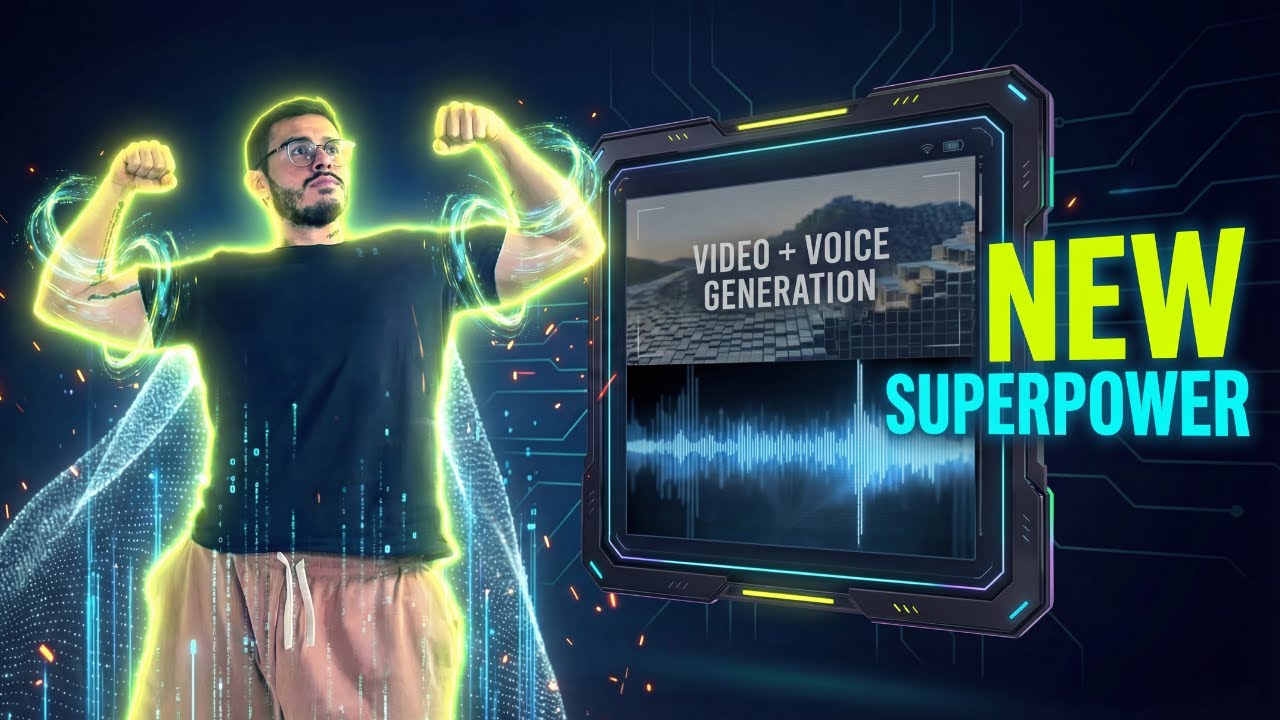
Kling 2.6 Audio just fixed that. For the first time, you can generate video with built-in audio in the same workflow. No extra tools. No plugins. No editors. I’m Charles Dove, and I tested this the day it dropped. Here’s exactly how it works and why it matters.
The Biggest Problem With AI Video (Until Now)
I’ve used a lot of AI video generators. Sora 2, Runway, Pika, you name it. The video quality keeps getting better. But there’s always been one massive gap: the audio.
Most AI video generators produce silent clips. That means you’re stuck doing extra work. Record a voiceover in ElevenLabs. Sync it manually. Hope the lip movements match. It’s a whole process that kills your momentum.
And the tools that do include voice? You can tell it’s AI. The voice sounds robotic. It breaks the illusion. Your content looks professional but sounds like a chatbot.
Kling 2.6, running inside Higgsfield AI, changes this. The voice quality coming out of this model sounds like something from ElevenLabs or Retell. It’s not perfect, but it’s closer to real than anything else I’ve tested in AI video generation.
Why Higgsfield AI Is My Go-To Platform
Before I get into the workflow, let me explain why I use Higgsfield AI specifically.
Higgsfield is an all-in-one platform. You can do AI image editing, image creation, and video generation all in one place. You don’t need to jump between five different tools. That alone saves a ton of time.
But the real win is the token cost. It’s low. Way lower than most competitors. When you’re iterating on content and generating multiple versions of a video, cost adds up fast. Higgsfield keeps it manageable.
And now with Kling 2.6 Audio baked in, you’re getting image creation, video generation, and audio all under one roof. That’s the superpower. One platform. Three outputs. No friction.
My Full Workflow: Image to Video With Voice
Here’s the exact process I walked through on my YouTube channel @charlieautomates. This is the same workflow I use for client samples at CC Strategic.
Step 1: Generate a Prompt With Your AI Model
Start in whatever AI model you prefer. ChatGPT, Gemini, Claude, whatever you’re comfortable with. Ask it to create a prompt for an image based on your use case.
For the demo, I asked it to create a prompt for a local med spa. Something simple. The idea is to create a base image that will become the first frame of your video.
Keep the prompt specific. Include the setting, the character, and the mood. The more detail you give here, the better your output will be later.
Step 2: Create Your Base Image in Higgsfield
Take that prompt and head over to Higgsfield’s image generation. I used Nano Banana Pro at 4K resolution. Nano Banana is legitimately one of the best image models on the platform.
You don’t need to feed it any reference images or assets for a first test. Just paste your prompt and let it run. The results speak for themselves.
Here’s a tip I mentioned in the video: you can also use a photo of yourself or your client in their actual facility. Same lighting, same angle. Upload that as a starting image and either edit it, upscale it, or use it directly as the base for your video. This is huge for businesses that want brand-specific content.
Step 3: Create the Video Prompt for Kling
Now comes the fun part. Take your generated image and create a new prompt specifically for Kling 2.6 to turn it into video.
This is where you tell Kling what you want to happen in the scene. Include:
- The character’s name (this matters for voice)
- What they’re saying (this is your script)
- What they’re doing (gestures, movements, walking)
- The setting and mood (lighting, environment)
- Duration (10 seconds is the sweet spot)
The key detail: Kling follows the script exactly. If you put a hyphen in the dialogue, it won’t pronounce the word correctly. I learned this the hard way. My first version had “Hey, Autumn here” with a hyphen after “Hey,” and the voice skipped it entirely.
I fixed it by removing the hyphen and changing the character name from Autumn to Jill for cleaner pronunciation. Small details like this make a big difference.
Step 4: Generate and Review
Set your aspect ratio. I used 16:9 because that’s YouTube format. Use 9:16 for TikTok or Instagram Reels. Then hit generate.
Here’s what happened in my test: the video used my starting image and maintained character consistency. The same person from the image appeared in the video. That’s something most AI video tools still struggle with.
The voice said: “Hey, Jill here and welcome to Aura. Let me show you around.”
Natural. Clean. Not robotic.
Step 5: Iterate Until It’s Right
Did I love every version on the first try? No. The wave animation wasn’t perfect in one version. The scene wasn’t exactly what I pictured in another.
But here’s the thing. You can rerun it. Copy the same image, adjust your prompt, and generate again. Same character, different take. You can do this over and over until you get a version you love.
That’s the real power here. Fast iteration with consistent output.
What Makes Kling 2.6 Audio Different
Let me break down why this update specifically matters.
Voice quality. The audio coming out of Kling 2.6 sounds like a voice agent from ElevenLabs or Retell. Not perfect, but genuinely impressive for a tool that generates video and audio simultaneously.
Character consistency. Your starting image carries through to the video. The person in the image is the person in the video. Same face, same outfit, same setting.
All-in-one workflow. Image, video, and audio created in one platform. No exporting. No importing. No syncing. You create everything inside Higgsfield and get a finished clip.
Low token cost. You can iterate multiple times without burning through your budget. This is critical when you’re testing different scripts or angles.
Script accuracy. Kling follows your script word for word. That’s a double-edged sword (watch your punctuation), but it means you have full control over what the character says.
Who Should Use This
I laid out four main use cases in the video. This isn’t just for one type of creator.
Content Creators
Shorts with voiceovers. Ad mockups. Explainer videos. You can turn an idea into a draft instantly. No camera, no studio, no editing suite. Just a prompt and Kling.
Marketers
Client samples with audio baked in. Imagine showing a potential client what their ad could look like, complete with voiceover, before they even sign. That’s a sales tool, not just a video tool.
Educators
Teaching content with consistent characters. You can create a spokesperson who appears in every lesson. Same face, same voice, same style. Just different scripts for different topics.
Storytellers
Characters that speak with consistency across multiple scenes. Use the same starting image but prompt it for different scenarios. Rinse, wash, repeat. Plug that same image back into Nano Banana, change the scene, and generate a new video. Same character, new story.
Prompting Tips That Actually Matter
After testing this workflow multiple times, here are the practical things that made the biggest difference.
Remove special characters from dialogue. Hyphens, em dashes, ellipses, these all cause pronunciation issues. Write your script like clean spoken English.
Keep scripts to 10 seconds. That’s the current sweet spot for Kling 2.6 Audio. Short enough for the AI to render cleanly. Long enough to deliver a message.
Use specific character names. Names that are easy to pronounce work better. “Jill” worked great. More unusual names might get mangled.
Describe the action, not just the dialogue. Tell Kling that the character is walking toward the camera, gesturing with their hands, or standing behind a counter. The more context you give, the more natural the movement looks.
Iterate your prompts with AI. I use other agents on my accounts that do this exact process for me. But even manually, you can paste your prompt back into ChatGPT and ask it to refine for better video output.
Pricing and Which Plan to Start With
Higgsfield has multiple pricing tiers. Here’s my recommendation.
If you want to test it out, start with the Basic plan. See if you like the workflow. See if the output quality meets your needs.
If you’re serious about creating content with this, I recommend the Expert plan as your starting point. You can always upgrade to Creator later if you need more credits.
I’m on the Ultimate plan because I need the volume. It gives you 1,200 credits per month and unlimited access to most models. For someone creating content regularly, that’s the plan that makes sense.
The token cost per generation is low compared to competitors. That’s one of the biggest reasons I stick with Higgsfield over other platforms.
My Honest Rating
Out of all the AI video updates I’ve seen this year, Kling 2.6 Audio is one of the top releases. As a creator tool, I’d rate it a solid 9.5 out of 10.
Is it perfect? No. The voice still has occasional quirks. Some scenes need a rerun to get right. But the fact that you’re getting video plus audio in one generation, with character consistency and a clean workflow? That’s a game-changer.
If AI video keeps developing at this rate, the entire content creation game is going to change for the better.
Try It Yourself
Here’s where to get started:
- Try Kling 2.6 Audio on Higgsfield: higgsfield.ai
- Get all my Kling prompts and video assets: higgsfield.ai/Kling-2.6-audio
Want to learn how I build workflows like this for businesses? Join CC Strategic AI on Skool where I share my full prompt libraries, AI systems, and content creation processes.
FAQ
What is Kling 2.6 Audio?
Kling 2.6 Audio is an update to the Kling AI video model that adds built-in voice generation to video clips. Instead of generating silent video and adding voiceover separately, you get both video and audio in one generation. It’s available through Higgsfield AI’s platform.
How is Kling 2.6 different from Sora 2?
The main difference is voice quality. Sora 2 can generate video, but the audio quality sounds noticeably artificial. Kling 2.6 produces voice that’s much closer to what you’d get from dedicated voice AI tools like ElevenLabs. It also runs inside Higgsfield, which gives you image creation and video generation in one place.
What is Higgsfield AI?
Higgsfield AI is an all-in-one platform for AI content creation. It includes image generation (using models like Nano Banana Pro), video generation (using Kling), and now audio generation. You can create, edit, and iterate on content without switching between multiple tools.
Do I need to use my own photos as starting images?
No. You can generate images entirely from text prompts using Nano Banana Pro inside Higgsfield. But if you want brand-specific content, you can upload a real photo of yourself or your business as the starting image. This helps maintain consistency with your actual brand.
How much does Higgsfield cost?
Higgsfield offers multiple plans. The Basic plan is good for testing. The Expert plan is where I’d recommend starting for regular content creation. The Ultimate plan (which I use) gives you 1,200 credits per month with unlimited access to most models. Token costs per generation are lower than most competitors.
Can I use Kling 2.6 Audio for business content?
Absolutely. This is one of the strongest use cases. You can create ad mockups, client samples, product demos, and promotional videos with voiceover built in. Marketers can show clients a finished video concept before signing a contract.
What aspect ratios does Kling support?
You can set your aspect ratio before generating. 16:9 works for YouTube. 9:16 works for TikTok, Instagram Reels, and YouTube Shorts. Choose whatever fits your content needs.
Why did the voice skip words in some videos?
Kling follows your script exactly. If you include hyphens, dashes, or unusual punctuation, the model may skip or mispronounce words. Write your dialogue as clean, simple spoken English for best results.
Can I reuse the same character across multiple videos?
Yes. That’s one of the biggest advantages. You can take the same starting image and prompt Kling with different scripts and different scenes. The character stays consistent. You can also feed the image back into Nano Banana to place the character in a new setting, then generate another video from there.
How long are the generated videos?
Currently, 10 seconds is the standard for Kling 2.6 Audio generations. You can create multiple 10-second clips and edit them together for longer content.
Charlie Automates breaks down AI tools and workflows for creators and business owners. Subscribe to @charlieautomates on YouTube for weekly tutorials on AI video, automation, and content systems.
The Higgsfield AI MCP setup is free in Free Resources. Every skill and playbook behind this build lives there, along with the rest of the stack I run.
Not sure what to fix first?
Most people don’t need another AI tool. They need to know which thing is actually costing them the most.
The AI Bottleneck Finder asks you a handful of questions, then tells you the one constraint capping your revenue right now plus two builds you could ship this week. Five minutes, free, no call required.