Not sure what to fix first?
Most people don’t need another AI tool. They need to know which thing is actually costing them the most.
The AI Bottleneck Finder asks you a handful of questions, then tells you the one constraint capping your revenue right now plus two builds you could ship this week. Five minutes, free, no call required.
Take the free AI Bottleneck Finder →
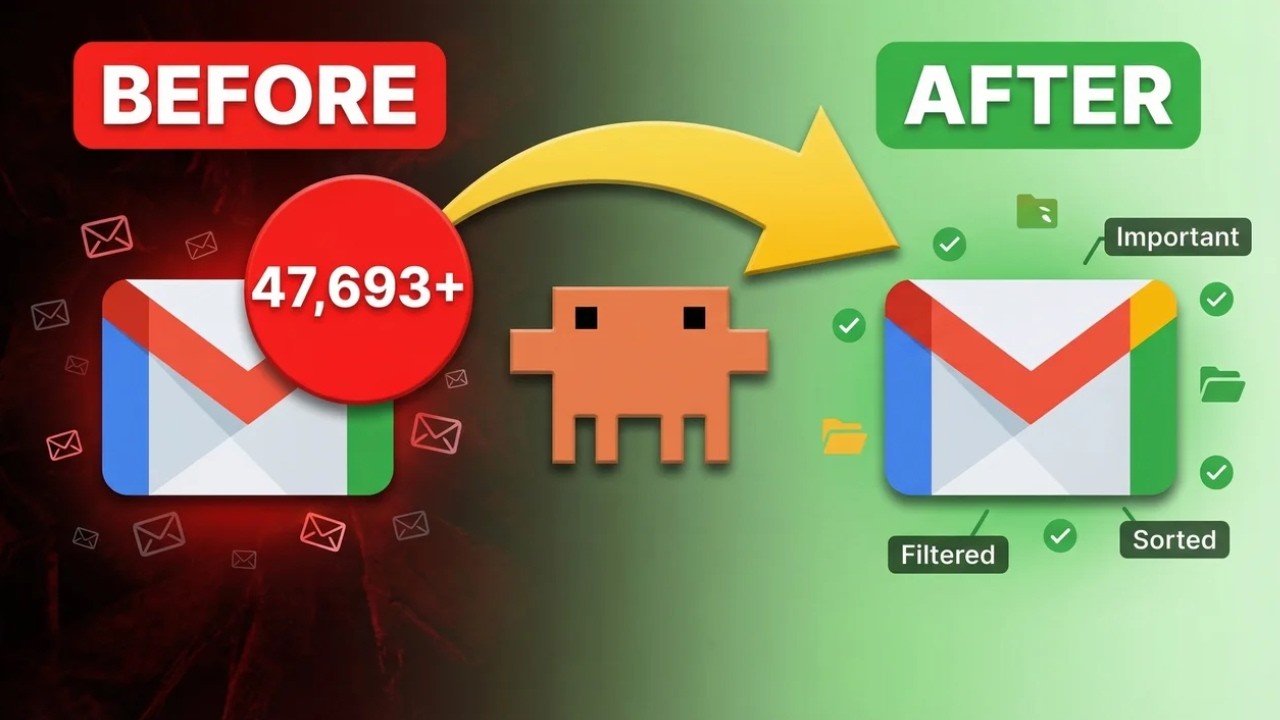
I had 47,693 emails sitting in one inbox. Most of them unread. No labels. No system. Just chaos stacked on top of chaos.
I gave it to Claude Cowork. Five minutes later, the inbox was cleared, labeled, and organized. Not by me. By an AI that actually understands what email management should look like.
I’m Charles Dove. I run CC Strategic, an AI automation agency, and I build in public on the Charlie Automates YouTube channel. This is one of the most useful things I’ve done with Claude, and I want to walk you through it step by step.
What Is Claude Cowork?
Claude Cowork might be the most underrated feature in Claude right now. It’s basically Claude Code without all the technical hiccups. You don’t need a terminal. You don’t need VS Code. You just need the Claude Desktop app.
Think of it this way. Claude Code is for developers building apps and writing scripts. Claude Cowork is for everyone else. It connects to your Gmail, Google Calendar, Google Drive, and your Chrome browser. Then it takes action on your behalf.
That’s the key difference. It doesn’t just read your stuff. It actually does things. It creates labels. It marks emails as read. It drafts replies. It schedules events. All from one chat interface.
Why Your Inbox Is Costing You Money
Let’s be honest. Most people treat their inbox like a junk drawer. Thousands of unread emails. No labels. No filters. No system.
That’s not just messy. It’s expensive. You’re missing client emails. You’re ignoring business opportunities. You’re wasting 15 minutes every morning scrolling through garbage just to find the one message that matters.
I had 3,600 unread emails on my first test inbox. The 47,000-email inbox was even worse. There was no way I was going through that manually. And no, I wasn’t going to declare inbox bankruptcy and start fresh. Those emails had real business opportunities buried in them.
Claude Cowork handled the entire thing.
The Setup (Under 5 Minutes)
Here’s everything you need to get started. It’s embarrassingly simple.
Step 1: Download Claude Desktop
If you don’t already have it, Google “Claude Desktop” and download it for your computer. Mac or Windows, doesn’t matter.
You’ve probably seen me use Claude Code in the terminal for building apps and websites. The Desktop app gives you that same power, but with a visual interface. And it’s where Cowork lives.
Step 2: Connect the Gmail Connector
Open Claude Desktop. Go to your settings. Look for the section called “Connectors.” Hit “Browse Connectors” and find Gmail. It’s probably the first one you’ll see.
Click connect. It’ll pop open a Google auth page. Click continue. Pick the email account you want to connect. Select all permissions. Click continue again. Hit “Open in Claude.”
That’s it. Connected.
Now go back to the connectors page. You’ll see a “Configure” button next to Gmail. Click it. Mark all the options as “Always Allow.” This lets Claude take every action it needs without asking you for permission each time.
Step 3: Install the Claude and Chrome Extension
This part is important. Go to the Chrome Web Store and search for the Claude extension. Install it. Log in with the same Claude account you use on the Desktop app.
Back on the connectors page, you’ll see “Claude and Chrome” listed. Enable it if it’s not already on.
Why do you need this? Because Claude uses the Chrome extension to create labels directly in your Gmail interface. The Gmail connector reads and organizes your emails. The Chrome extension takes action on the browser side. They work together.
Step 4: Write Your Prompt
Here’s the prompt I used. You can copy this or customize it for your own inbox:
Let’s organize the email inbox. I need you to make sure everything is marked as read and create a label management system for all my emails. Create the following labels from the screenshotted picture. Don’t make any mistakes.
I had already set up a label system on a different inbox using Cowork. So I screenshotted those labels and told Claude to replicate the same system on this new inbox.
You can do the same thing. Or you can let Claude create its own label system from scratch. Just tell it what categories matter to you.
What Claude Actually Did
Once I hit send, Claude went to work. Here’s what happened:
First, it connected to the Gmail API. Full access to read, label, archive, and organize.
Then it started creating labels. Not random ones. A full label management system based on the screenshot I gave it. Business emails, newsletters, receipts, personal messages, client communications. Everything got its own category.
Next, it swept through the inbox. It read through the emails, categorized them, and applied the right labels. It cleaned up old drafts. It deleted labels I wasn’t using anymore.
The result? All 47,693 emails were categorized. New emails coming in now get tagged automatically with the right labels. I can track each label or folder individually.
The whole process took about five minutes. Five minutes to do what would have taken me days (or more realistically, something I would have never done at all).
Beyond Email: Calendar and Drive
Here’s where Cowork gets really interesting. It’s not just an email tool. It connects to your entire Google Workspace.
Google Calendar
I was at the gym the other day. Got a Slack message about scheduling a meeting. Normally I’d have to open Google Calendar, create the event, add the people, set the time. All that manual work.
Instead, I pulled out my phone. Opened the Claude app. Typed: “Create a calendar event for these people at this time.”
Done. From my phone. While I was between sets. No app-switching. No manual entry. Claude already had my contacts connected through the email connector. It just handled it.
Google Drive
Same story with files. I needed to share some documents with clients before a meeting. Instead of digging through Google Drive, finding the files, creating share links, and emailing them out individually, I just told Claude.
“Send these files over to these clients so they have the materials before the meeting starts.”
That was it. I didn’t have to do anything manually. I spoke with the AI, and it had the connectors to make it happen.
Using Cowork as a Daily Email Assistant
This is the real power move. Once your labels are set up, you can use Cowork as a daily email briefing tool.
Every morning (or whenever you check your inbox), just ask:
Give me a report of the past 24 hours. Is there anything urgent or business opportunity related that I might have missed?
Claude will scan your inbox. It’ll read through the tags it already created. Then it’ll give you a full report. Urgent stuff at the top. Opportunities highlighted. Noise filtered out.
You can even ask it to create a spreadsheet or tracker of what you might have missed. It’s like having an executive assistant who works 24/7 and never forgets a follow-up.
Taking It Further with Automation
Once you have labels set up, you can build automations on top of them. Think about it:
- Daily email digest: Set up a Claude Code script that runs every morning and sends you a summary of your most important emails.
- Auto-responses: Create rules for certain label categories. If something is tagged “newsletter,” archive it. If it’s tagged “client,” flag it for immediate response.
- n8n workflows: Connect your labeled Gmail to an n8n workflow that triggers actions based on email categories. New client email? Create a CRM entry. New invoice? Log it in your spreadsheet.
You could use Claude Code in VS Code to build custom scripts for this. Or you could use n8n if you want a visual automation builder. Either way, the labels are the foundation. Cowork builds that foundation for you.
Which Model Should You Use?
I used Sonnet 4.6 for this. It’s more than powerful enough for email management. You don’t need the top-tier model for organizing emails and creating labels.
That said, if you want the best possible output for more complex tasks (like analyzing email content, drafting responses, or building detailed reports), you can switch to Opus. But for the setup and organization work? Sonnet handles it perfectly.
Why Claude Is Winning the AI Race
I’ve said this before and I’ll keep saying it. Claude is at the forefront of all the AI companies right now. Not just because of Claude Code (though that’s a huge part of it). But because of features like Cowork that make AI useful for non-technical people.
You don’t need to know how to code. You don’t need a terminal. You don’t even need to understand what an API is. You connect it, you prompt it, and it works.
That’s the bar. And right now, Claude is the only one clearing it consistently for everyday productivity tasks.
Frequently Asked Questions
Do I need a Claude subscription to use Cowork?
Yes. Claude Cowork is available with a Claude Pro or Team subscription. The free tier doesn’t include connectors. But you can watch the video on YouTube (@charlieautomates) first and decide if it’s worth the switch.
Is it safe to give Claude access to my email?
Claude uses Google’s standard OAuth permissions. It’s the same authentication process you use when connecting any third-party app to Gmail. You can revoke access at any time from your Google account settings.
Will Claude delete my emails?
Not unless you specifically ask it to. In my case, I asked it to mark emails as read and apply labels. It cleaned up some old drafts and removed unused labels. But it won’t delete anything without your explicit instruction.
Can I use this with Outlook or other email providers?
Right now, Claude Cowork connectors work with Gmail and Google Workspace. Outlook support isn’t available yet. If you’re on Outlook, you’d need to use Claude Code with a custom MCP server setup, which requires more technical work.
How many emails can Cowork process at once?
I threw 47,693 at it and it handled the job. The processing happens through the Gmail API, so there’s no hard limit on email count. Larger inboxes will take a bit longer, but it’ll get through them.
Can I customize the label categories?
Absolutely. You can tell Claude exactly what labels you want. Business, personal, receipts, newsletters, client work, whatever fits your workflow. You can also screenshot an existing label system and tell Claude to replicate it.
Does it work on the Claude phone app?
Yes. Once your connectors are set up on the Desktop app, they carry over to the mobile app. I used the phone app at the gym to create calendar events and manage emails on the go.
Can Claude automatically label new incoming emails?
Once the label system is set up, you can ask Claude to categorize new emails during your regular check-ins. For fully automatic labeling of every incoming email, you’d want to build an automation using Claude Code or n8n that runs on a schedule.
Ready to Clean Up Your Inbox?
If you’ve got thousands of unread emails sitting in your inbox, stop ignoring them. Don’t declare inbox bankruptcy. Let Claude Cowork sort through the mess for you.
Five minutes of setup. Zero technical skills required. And you’ll finally have an inbox that works for you instead of against you.
Want to go deeper? Join CC Strategic AI on Skool where I share all my Claude Code resources, workflows, templates, and playbooks. A community of people building with AI.
Want 1-on-1 help? and I’ll help you set up systems like this for your business.
Charlie Automates. I’ll see you in the next one.
The Claude Cowork email setup is free in Free Resources. Every skill and playbook behind this build lives there, along with the rest of the stack I run.
Not sure what to fix first?
Most people don’t need another AI tool. They need to know which thing is actually costing them the most.
The AI Bottleneck Finder asks you a handful of questions, then tells you the one constraint capping your revenue right now plus two builds you could ship this week. Five minutes, free, no call required.