Not sure what to fix first?
Most people don’t need another AI tool. They need to know which thing is actually costing them the most.
The AI Bottleneck Finder asks you a handful of questions, then tells you the one constraint capping your revenue right now plus two builds you could ship this week. Five minutes, free, no call required.
Take the free AI Bottleneck Finder →
I used to spend 30 minutes every morning planning my day. Now I don’t.
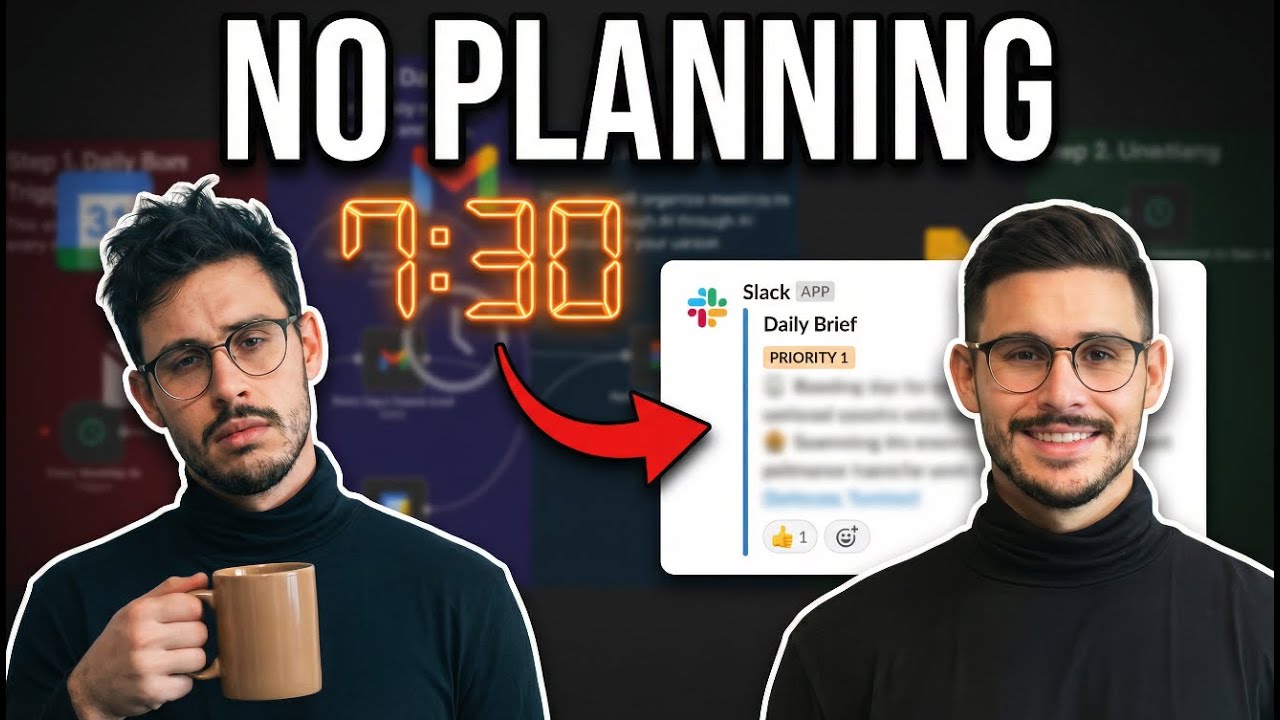
One n8n workflow killed my daily planning routine. It pulls my calendar, emails, weather, and tasks. Runs it all through AI. And sends me a Slack message before I even finish my coffee.
Here’s exactly how I built it.
Why I Stopped Planning My Day Manually
I’m Charles Dove. I run CC Strategic, an AI automation agency. I also build in public on the Charlie Automates YouTube channel.
Every morning used to look the same. Wake up. Open my calendar. Check email. Look at my task list. Check the weather. Try to figure out what matters most. That whole process would eat 20 to 30 minutes before I’d actually start working.
That’s not a good use of time. Especially when you’re running multiple businesses.
So I built an n8n workflow that does all of it for me. Every day at 7:30 AM, it fires automatically. No input from me. No manual checking. Just a clean daily briefing waiting in Slack when I wake up.
What the Workflow Actually Does
The workflow has four main components. Each one pulls a different piece of data I need to start my day.
1. Calendar Events
It grabs today’s calendar events from Google Calendar. So I can see every call, meeting, and appointment on my schedule without opening anything.
2. Emails
It pulls my unread emails from Gmail. Not all of them. Just the ones that need attention. The AI figures out which ones are priority and which ones can wait.
3. Weather
This might seem small, but it matters. The workflow uses Apify to fetch the weather for my location. Knowing if it’s going to rain or be freezing changes how I plan my day. Especially if I have in-person meetings.
4. Tasks
It pulls my Google Tasks. Everything I’ve queued up as a to-do gets included in the briefing. The AI ranks them by priority from one to three.
All four data sources get merged together, cleaned up, and sent to an AI agent. That agent creates a formatted daily briefing and posts it straight to Slack.
The Slack Notification
Here’s what the final output looks like. It’s clean and organized.
- Weather for the day at the top
- Calendar events with times and details
- Priority emails that need my attention
- Task list ranked from priority one to three
- Top focus for the day picked by AI based on everything above
The AI even flagged things I didn’t know about. One morning it told me I had a broken email campaign that needed fixing. I wouldn’t have caught that until later in the day. That alone justified building this thing.
It also picks my single top focus. If I have a sales call, it’ll tell me that’s the most important thing on my plate. No more second-guessing what to tackle first.
How to Build This Workflow (Step by Step)
Let me walk you through the actual setup. It’s simpler than it looks.
Step 1: The Morning Trigger
This is a basic schedule trigger in n8n. Set it to fire at 7:30 AM (or whatever time you wake up). Nothing fancy here. Just a cron job that kicks everything off.
Step 2: Pull Your Data
This is where you connect your four data sources. Each one is its own node in n8n.
Google Calendar node. Connect your Google account. n8n lets you sign in with Google directly. No API keys, no Google Cloud Console headaches. Just click “Sign in with Google” and you’re done. Set it to pull today’s events.
Gmail node. Same thing. Connect your Google account and set it to pull unread emails. You can filter by label or inbox if you want to get specific.
Apify weather node. This one uses an HTTP request to the Apify API. You’ll need an Apify account (free tier works). Find the “Weather Fetcher” actor in Apify. Grab the API endpoint URL. Paste it into an HTTP request node in n8n. Add your Apify API key as a bearer token in the authorization header.
Google Tasks node. Connect your Google account one more time. This pulls your active tasks. Same sign-in process as the calendar and Gmail nodes.
Step 3: Merge and Aggregate
Once all four nodes pull their data, you need to clean it up. Two nodes handle this.
Merge node. This combines all four data streams into one output. Without it, you’d have four separate data sets that can’t talk to each other.
Aggregate node. This structures the merged data into clean JSON fields. Calendar events, unread emails, weather, and tasks. Each one gets its own clean label. This matters because the AI agent needs well-structured data to give you a good summary.
Step 4: The AI Agent
This is where the magic happens. I’m using an OpenAI agent node (GPT-4o mini to keep costs low).
The agent gets a system prompt that tells it how to format the daily briefing. It receives the aggregated JSON data. Calendar events, emails, weather, tasks. And it outputs a nicely formatted summary with priorities, action items, and a top focus for the day.
You could use any LLM here. Claude, GPT-4, Gemini, whatever. The prompt does the heavy lifting.
Step 5: Slack Output
Last step. Connect a Slack node. Pick your channel. Map the agent’s output to a simple text message. Done.
When the workflow fires at 7:30 AM, you’ll get a clean daily briefing in Slack. No manual work. No checking five different apps.
Why This Matters for Business Owners
If you’re running a business, or multiple businesses, your morning routine sets the tone. Every minute spent manually checking calendars and emails is a minute not spent on revenue-generating work.
This workflow saves me 30 minutes a day. That’s 2.5 hours a week. Over 10 hours a month. That’s real time back.
But the bigger win is mental. I don’t start my day scrambling to figure out what’s important. The AI already did that analysis. I just read the summary, grab my coffee, and start executing.
That’s the whole philosophy behind what we do at Charlie Automates. If a human has to babysit it, it’s not real automation.
Tools You’ll Need
Here’s the full stack for this workflow:
| Tool | Purpose | Cost |
|---|---|---|
| n8n | Workflow automation platform | Free (self-hosted) or paid cloud |
| Google Calendar | Calendar events | Free |
| Gmail | Email data | Free |
| Google Tasks | Task management | Free |
| Apify | Weather data via API | Free tier available |
| OpenAI | AI agent for formatting the briefing | Pay per use (cheap with mini models) |
| Slack | Where the daily briefing lands | Free tier works |
Apify discount: New to Apify? Use code CHARLES20 for 20% off through my link. It’s limited to the first 100 users, so grab it before it runs out.
Most of these are free. The only real cost is the OpenAI API calls, and using a mini model keeps that under a few cents per day.
Common Mistakes to Avoid
Don’t skip the merge and aggregate nodes. Without them, your AI agent gets messy, unstructured data. The output will be garbage. Clean data in means clean summaries out.
Don’t use an expensive model. You don’t need GPT-4 Turbo for a daily briefing. A mini model handles this perfectly. Save the big models for complex reasoning tasks.
Don’t forget to test each node individually. Before you connect everything, make sure each data source actually returns data. A broken Gmail connection will silently fail and you’ll get an incomplete briefing.
Set your timezone correctly in n8n. If your cron trigger is set to UTC and you’re in EST, your briefing will fire at the wrong time. Small thing, big annoyance.
How to Get the Template
Want the exact template I use? Join CC Strategic AI on Skool. The workflow template is in there ready to download. Just import it into n8n, connect your credentials, and you’re good to go. And if you want to go deeper on n8n, AI agents, and automation. I’ll walk you through the exact setup and help you build automations specific to your workflow.
FAQ
How much does this cost to run daily?
Almost nothing. The OpenAI API call costs a fraction of a cent when you use a mini model. Gmail, Calendar, Tasks, and Slack are all free. The Apify weather fetch is free on their starter plan. If you self-host n8n, the whole thing costs maybe $1 to $2 per month total.
Can I use this without Slack?
Yes. You can swap the Slack node for email, Telegram, Discord, or any messaging platform n8n supports. Some people send the briefing as a text message. Use whatever you check first thing in the morning.
Do I need to self-host n8n?
No. n8n has a cloud option that works fine for this. Self-hosting gives you more control and zero per-workflow costs, but the cloud version will get the job done if you don’t want to deal with Docker.
Can I add more data sources?
Absolutely. I’ve seen people add Trello boards, GitHub issues, CRM updates, social media analytics, and Notion databases. The workflow is modular. Just add a new node, connect it to the merge node, and update the agent’s prompt to include the new data.
What if I don’t use Google Calendar?
n8n supports Outlook, iCal, and other calendar providers. You’d just swap the Google Calendar node for whatever you use. The rest of the workflow stays the same.
Can I change the schedule to something other than 7:30 AM?
Yes. The cron trigger is fully customizable. Set it to whatever time you want. Some people run it twice a day. Once in the morning for planning, and once in the afternoon for a status check.
What AI model should I use?
I use GPT-4o mini because it’s cheap and fast. But you can use Claude, Gemini, or any model n8n supports. For a daily briefing, you don’t need the most powerful model. Speed and cost matter more here.
Is this workflow hard to set up?
Not at all. If you can connect a Google account and paste an API key, you can build this. The hardest part is the Apify weather node, and that takes maybe 10 minutes. Most people have this running in under an hour.
You can pull the N8N MCP server from Free Resources at no cost, alongside the full library of skills and playbooks I build with.
Not sure what to fix first?
Most people don’t need another AI tool. They need to know which thing is actually costing them the most.
The AI Bottleneck Finder asks you a handful of questions, then tells you the one constraint capping your revenue right now plus two builds you could ship this week. Five minutes, free, no call required.