Get your next client on autopilot
Inside AI Autopilot Academy you get my 27-day Claude Code mastery program with a 1-click install setup file, so you’re up and running on day one. Plus my GoHighLevel CLI, the Skool Automation MCP and Jarvis +. And you get a proven Claude Code content system to get your next client on autopilot.
Your first hour of the day is your best hour. Most business owners burn it sorting email and checking a calendar. That’s money walking out the door before you’ve done one thing that grows the business.
You can hand that hour to Claude in three steps: connect, rank, deliver. The Claude Gmail and Google Calendar connectors do the reading. You teach Claude what matters. It hands you a one-page brief with your day ranked and a plan of attack.
I’m Charles J Dove, and I run Charlie Automates. This is episode 1 of my new series, “Automate It in 15 Minutes,” where each episode automates one thing that’s kicking your butt in 15 minutes or less. Here’s the full walkthrough from the Charlie Automates video, restructured so you can follow it step by step.
What does a Claude morning brief give you?
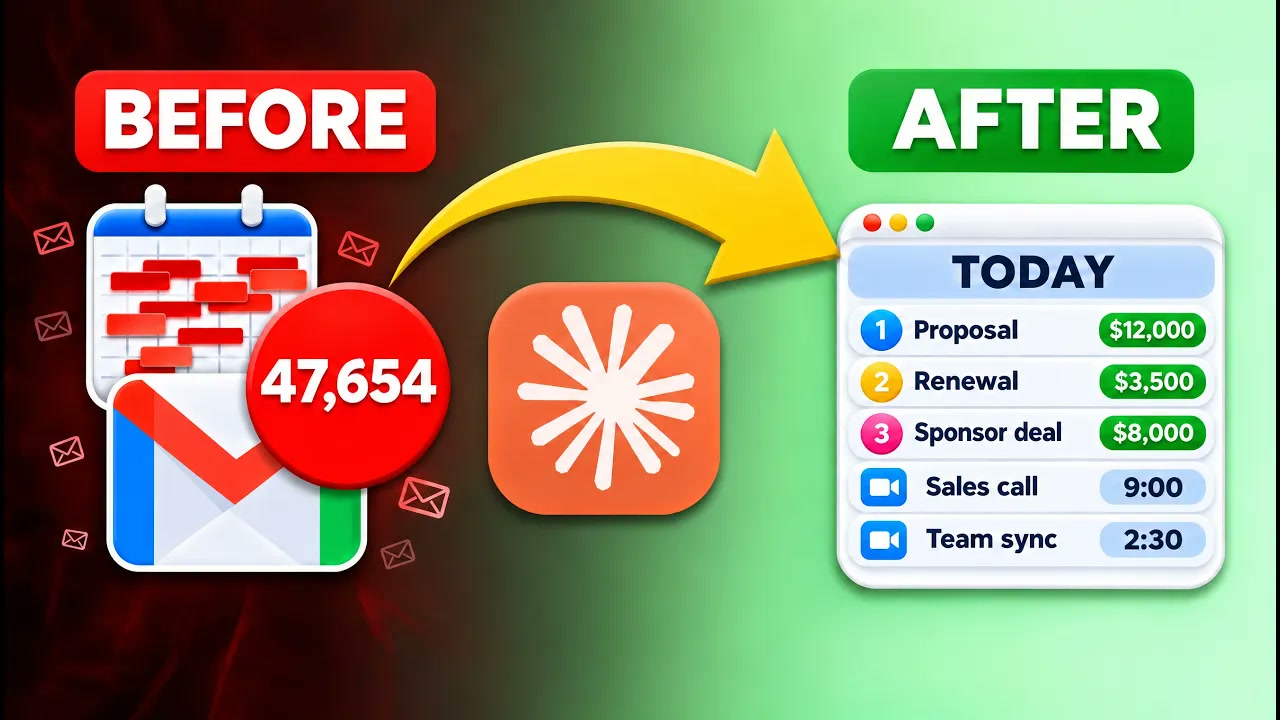
A Claude morning brief is a one-page artifact that turns your inbox and your calendar into a ranked view of your day. You open one page instead of hunting through email and checking Google Calendar over and over.
Here’s what mine contains every morning:
- High-level insights. On the run in the video, I had $4K booked waiting on me, $16,000+ in quote requests, and a consultation at 3pm.
- My calendar, ranked by priority.
- Sponsorship deals, pulled out of my email with an in-depth view of each one.
- Credit and billing alerts.
- Marketing inspiration from the people who email me.
- A plan of attack I can check off as the day goes.
I get 50 to 100 emails a day in the inbox I used for this. On my calendar I have 5 to 10 meetings a day at the start of each week. That’s the volume this is built for.
Step 1: Connect Claude to Gmail and Google Calendar
Connecting Claude to Gmail and Google Calendar takes one prompt and two OAuth logins. You don’t need a technical background for this step.
- Open a terminal with Claude Code and tell it you want to connect the Claude AI Gmail and Google Calendar connectors.
- Claude opens an OAuth page. Open the Connectors list, where you’ll see Gmail and Google Calendar. If you don’t, type either name into the search box.
- Click connect on each one, log into your Google account, and approve.
That’s step one. If you don’t have Claude Code on your computer yet, start with my Claude Code beginner setup guide and come back.
How do you pick the right Gmail account?
Run /mcp inside the terminal and press enter. You’ll see Gmail and Google Calendar listed. Click one to reconnect it, then add another account, sign in, and pick the one you want. You can keep multiple inboxes connected or disconnect the one you don’t want. The calendar works the same way.
I did this on purpose. I wanted Claude pointed at my business inbox, not the wrong one.
Step 2: Rank what Claude finds in your inbox and calendar
Ranking means telling Claude which kinds of emails and meetings matter to you, so it sorts them the way you would. This is the step that needs real thought, because Claude can only prioritize what you teach it to look for.
You can sort email into groups that fit your life. Think money emails, reply today, for your information, and ignore. Meetings can get categories too: a sales call that needs prep, or an internal all-hands team meeting.
I picked three inbox categories (you don’t have to stop at three):
| Category | What Claude looks for |
|---|---|
| Sponsorship deals | Brand emails asking about rates or offers, with dollar amounts quantified |
| Credit and billing alerts | Anything about cards, charges, and money admin |
| Marketing inspiration | Emails from people whose marketing I learn from |
For the calendar, I asked Claude to read the past 60 days to find recurring meetings, specifically my coaching calls (the 20-minute blocks). Over time it learns more about how I work.
Why should you tell Claude to plan before it builds?
Tell Claude to plan before it builds anything, then read what it says. In my run the plan covered how to sort Gmail into three buckets, how to read the calendar for recurring meetings and coaching blocks, and how to learn patterns. It looked at the last eight weeks of the calendar plus the next four.
Claude can also create labels in your Gmail account. If you want that, say yes as part of the plan. I already had labels, so I skipped it and told it to identify only for this run.
Claude then asks you decisions about learning over time. I told it a memory file was fine. I also gave it clear instructions for the marketing inspiration category and answered everything with a voice-to-text tool instead of typing. Screenshot your prompts and hand them to Claude so it knows exactly what you’re trying to do.
For step 2, I also wanted Claude to always quantify deal emails in dollar amounts, rank calendar events on priority, and pull in other email context tied to those events.
What permissions should the Claude Gmail connector have?
The rule is simple: read-only tools get always allow, and anything that writes or deletes stays on needs approval. Every connector has its own tool permissions, whether you’re on the Claude.ai website or in the local app, so check them before you build anything.
| Tool type | Examples | Setting |
|---|---|---|
| Read-only (Gmail) | Get drafts, get email message | Always allow |
| Write and delete (Gmail) | Anything that changes your inbox | Needs approval |
| Read-only (Calendar) | Reading events | Always allow |
| Write and delete (Calendar) | Making events, responding to an event, updating a calendar | Needs approval |
You can look through every tool and mark each one for how you want Claude to use your inbox. Leaving writes and deletes on needs approval means Claude asks before it changes anything.
Step 3: Deliver your first morning brief
Delivery is the one-page output where Claude shows you everything it found. In my setup, Claude created a morning brief command (a skill) and saved a memory file for my work patterns.
Before building anything final, I had Claude check 48 hours of events on my calendar and email, run the report, and create the artifact. It opens automatically on Claude’s website.
Here’s what I saw on my first brief:
- Insights up top: $4K booked, $16,000+ in quote requests, and a consultation at 3pm.
- Calendar ranked by priority.
- Sponsorship emails, including one asking for my rate with no cash on offer.
- Credit and billing: nothing except my Amex card and some mortgage information.
- Marketing inspiration I can hand back to Claude to help write better email marketing for my own business.
- A plan of attack with checkboxes: the call, what comes after the call, the skills work I had queued, and money admin, including a charge I needed to check.
If the output isn’t right, tell Claude what you like and what you don’t. It should do better next time. That’s the whole feedback loop.
How do you turn the morning brief into a Skillsmith skill?
You turn it into a repeatable skill by telling Claude you approve of the output and running Skillsmith. A skill means you never rebuild this by hand. You run one command and get the brief the way you like it every time.
Once I approved the output, Claude had already teed up Skillsmith as the next step. If you want the framework behind it, I covered it in my Skillsmith deep dive on AI agents and Claude skills. Then I ran the command with clearer instructions:
- Create the skill and have the command run.
- When it first runs, ask the range: just today, the past 24 hours, 48 hours, a week, or a 30-day review.
- Use the output framework I approved every time.
- Open a discussion afterward: do I want to draft email replies or edit calendar events?
- If I say yes, draft emails 5 at a time based on priority, with a context blurb on each email and the last message if there’s a thread.
When the skill finished, I opened a fresh session of Claude and ran it from scratch. It asked me what I wanted. I picked the past 48 hours and my business inbox, and it produced the brief. That’s the whole thing. The plan of attack broke the day into before the 3pm call, during the call, and after the call. At the end, Claude asked whether I wanted to draft email replies, edit events, or stop for now.
How do you make the brief sound and look like you?
You give Claude a voice fingerprint and a brand kit. Both are files, and both make the output yours instead of generic.
- Voice fingerprint. Feed Claude your call transcripts, prior emails, or any context about how you communicate. That powers my humanizer skill, so drafted replies sound like you. You can add rules, like no cursing.
- Brand kit. Give Claude your business website and have it study the design elements, then build the artifact to match.
One more trick: you can give the video itself to Claude and tell it to set everything up exactly the way it heard in the transcript. And if you have extra input while it builds the skill, tell it to update based on what you just said.
Can you schedule the morning brief to run on its own?
You can, but this episode doesn’t cover it. Scheduling means running the skill as a cloud agent on a schedule. If you want to see that as its own episode of “Automate It in 15 Minutes,” drop a comment on the video and tell me.
This is also where the bigger picture lives. A morning brief is a small version of what I call an agentic OS: Claude with your context, your rules, and your tools working for you. If that’s the direction you’re headed, read how to build an agentic OS in 3 steps.
Key takeaways
- Three steps run the whole thing: connect, rank, deliver.
- Connecting takes one prompt and two OAuth logins. Use
/mcpto pick the right Gmail account. - Teach Claude your categories. Mine were sponsorship deals, credit and billing alerts, and marketing inspiration, plus 60 days of calendar history.
- Tell Claude to plan before it builds.
- Read-only tools: always allow. Write and delete tools: needs approval.
- Quantify deals in dollars so the ranking means something.
- Package it with Skillsmith so one command gives you the same brief every day.
- Add a voice fingerprint and brand kit so replies and design match you.
FAQ
How do I connect Claude to Gmail?
Open Claude Code in your terminal and tell it you want to connect the Claude AI Gmail and Google Calendar connectors. Claude opens an OAuth page, you click connect on Gmail, log into your Google account, and approve. Do the same for Google Calendar. You don’t need a technical background, and the whole connect step is step 1 of 3.
Can I connect multiple Gmail accounts to Claude?
Yes. Run /mcp in your terminal, pick Gmail, and add another account. You can keep multiple inboxes connected or disconnect the one you don’t want. The calendar connector works the same way. Just make sure Claude is pointed at the right email before you run your brief.
What permissions should I give the Claude Gmail and Calendar connectors?
Keep read-only tools on always allow, such as getting drafts or an email message. Leave write and delete tools on needs approval. On the calendar, that means making events, responding to an event, and updating a calendar all ask you first.
Can Claude draft my email replies?
Yes. The skill I built asks whether you want to draft replies after it shows your brief. It drafts 5 emails at a time in priority order, with a short context blurb for each one and the last message in the thread. Add a voice fingerprint so the drafts sound like you.
What is Skillsmith, and why use it for a morning brief?
Skillsmith is the framework I use to build Claude skills in a consistent structure. For the morning brief, it packages the approved output into a repeatable command that asks which range you want, from today to a 30-day review. I have a separate video and a blog post on Skillsmith if you want the full framework.
How long does it take to set up?
The video’s promise is 15 minutes start to finish, covering the connect, rank, and deliver steps and turning the result into a skill. Your first run teaches Claude your preferences. After that, you tell it what you like and don’t like and it improves.
Is this different from cleaning up Gmail with Claude Cowork?
Yes. The morning brief reads your inbox and calendar and ranks your day. My Claude Cowork inbox cleanup post is about labeling and organizing thousands of old emails. They work well together.
Where to go from here
If you want to build this with me, AI Autopilot Academy goes much deeper on everything in this video. Inside the classroom there’s a simple four-step onboarding with a one-click install file for Charlie OS (the same Claude Code setup I use), a quiz that tells you where to start, my 27-day Claude Code mastery program, and a 90-day agency playbook for getting more customers on autopilot. There’s also a social media mastery program, and premium members get the template vault.
I’m Charles J Dove, and I build these systems for clients at my agency CC Strategic. New episodes of “Automate It in 15 Minutes” land on my YouTube channel, @charlieautomates, and you can find everything else from Charlie Automates at charlieautomates.com.
Want this built with you, not just explained?
AI Autopilot Academy is where you get the 27-day Claude Code mastery program, the full content automation system (Premium), the GoHighLevel CLI and Jarvis +. A proven Claude Code content system to get your next client on autopilot.